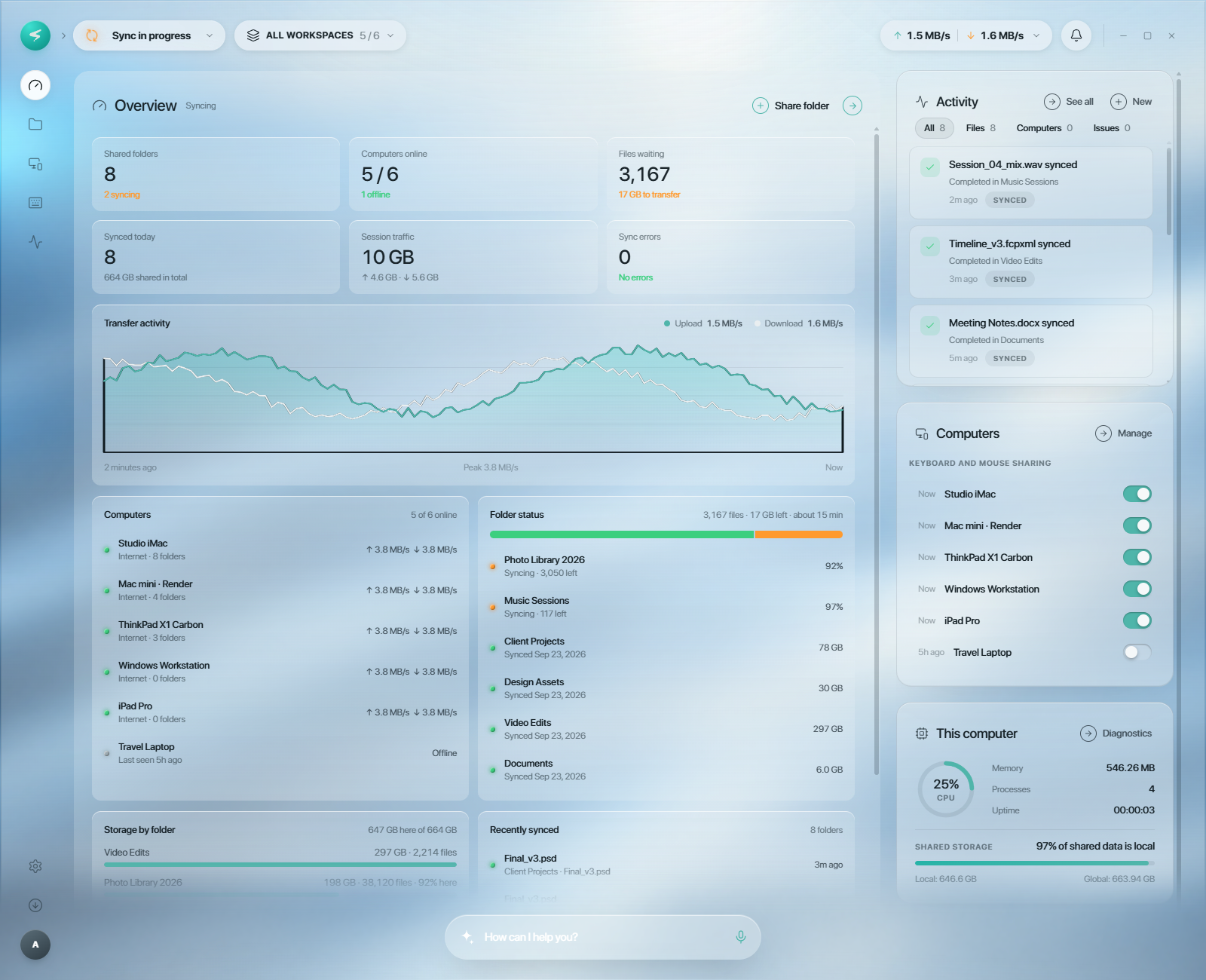
Connect your computers, not another cloud account

macOS
- Intel and Apple Silicon Macs
- Installs from a .dmg
- Asks for Accessibility and Local Network access so it can share input and find your other computers

Windows
- Windows 10 and 11
- Installs with a setup wizard (.exe)
- Allow Sysvia through Windows Defender Firewall if prompted

Linux
- Both X11 and Wayland
- AppImage for most distributions, .deb for Debian and Ubuntu
- Clipboard sync uses xclip (X11) or wl-clipboard (Wayland)
The same features on every platform
| Feature | macOS | Windows | Linux (X11) | Linux (Wayland) |
|---|---|---|---|---|
| Shared keyboard and mouse | * | |||
| Clipboard sync | Text + images | Text + images | Text + images | Text + images |
| Continuous file sync | ||||
| Encrypted peer traffic |
What you need

Same local network

Two open ports
Coming to Sysvia
 Planned
Phones and tablets
 In progress
Screen sharing
 Planned
More Linux packages
Common questions
My computers don’t show up in Sysvia
Most often they are on different subnets. Run ipconfig on Windows or ifconfig | grep "inet " on Mac and Linux, and check the addresses are in the same range.
Also check your router for Wi-Fi client isolation (AP isolation), which blocks computers from reaching each other. If it still fails, add the other computer manually using its IP address and port 24810.
The cursor won’t move to the other computer
Make sure Sysvia is running on both machines and that they share a network. Then confirm your firewall allows TCP 24810 and UDP 5353.
On Linux with ufw: sudo ufw allow 24810/tcp && sudo ufw allow 5353/udp. On Windows, allow Sysvia in Windows Defender Firewall. On macOS, add it under System Settings › Network › Firewall.
My pointer froze. How do I take control back?
Press Ctrl + Alt + Esc on that computer. On a Mac, press Control + Option + Esc.
Sysvia can’t control input on my Mac
macOS needs your permission before an app can share your keyboard and mouse. Open System Settings › Privacy & Security › Accessibility and turn Sysvia on.
Clipboard isn’t syncing on Linux
Install xclip on X11 or wl-clipboard on Wayland, and check that clipboard sync is turned on in Sysvia’s settings.