Sysvia
Why choose Sysvia

Your computers.
Better together.

A shared cursor is a start. Bring your keyboard, files and screens together in one app for Windows, Mac and Linux.

From $19.99 once. Your whole workspace included.

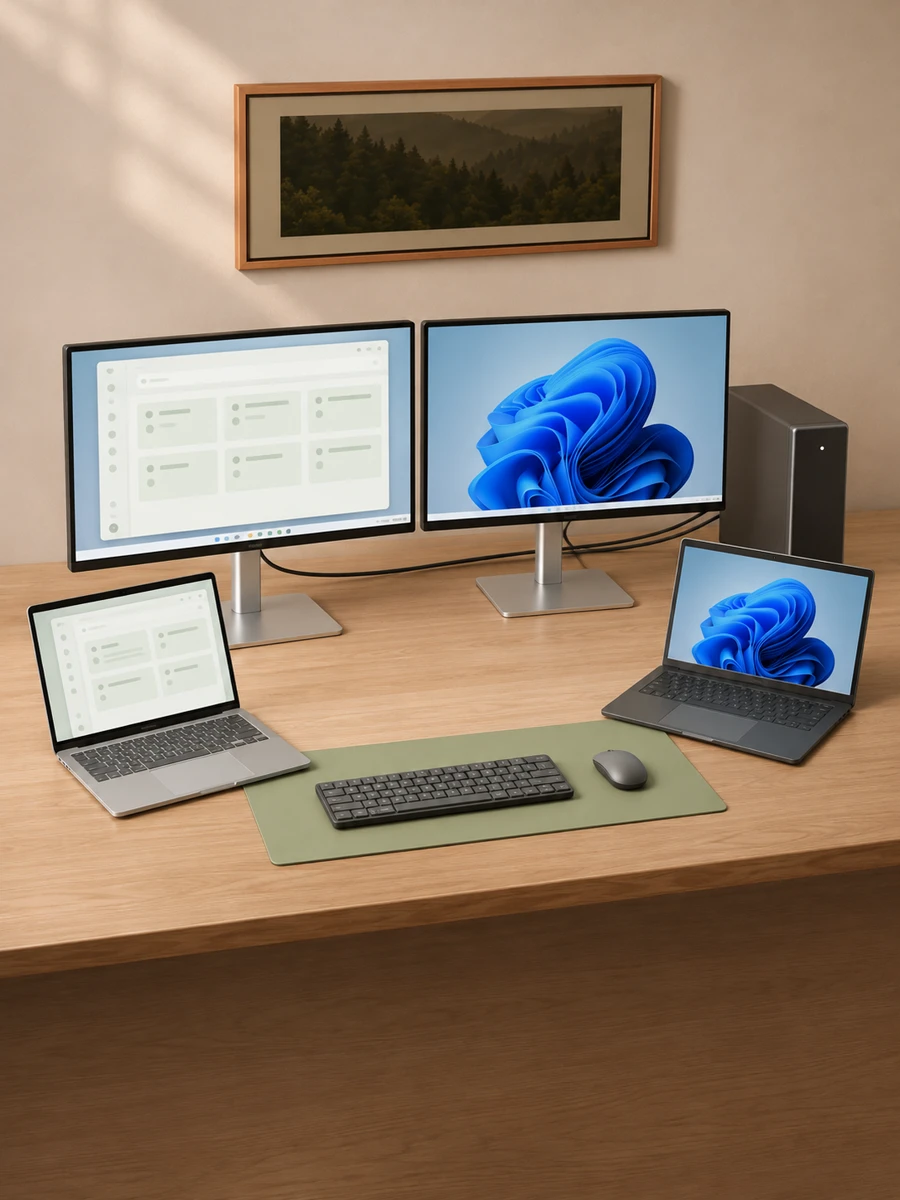
A connected desk with two monitors, two laptops, and one keyboard and mouse
One keyboard. Every computer.Input, files and screens, brought together.
Windows, macOS + Linux
Your keyboard. Your mouse.
One-time purchase
30-day money-back guarantee
A closer look

Less switching apps.
More getting things done.

Compare the essentials at a glance, with all six alternatives in view.

The main differences, side by side. Every Sysvia plan includes the full core feature set.

Sysvia's main features and plan details compared with Synergy, Deskflow, Mouse Without Borders, Logitech Flow, ShareMouse and Universal Control
FeaturesSysviaAll core features included Synergy Deskflow Mouse Without Borders Logitech Flow ShareMouse Universal Control
Input & files
Supported platformsWindows, macOS & LinuxWindows, macOS & LinuxWindows, macOS, Linux & BSDWindows onlyWindows + macOSWindows + macOSMac + iPad only
Keyboard & mouse sharingYour existing hardware; visual desk layoutIncludedIncludedIncludedIncludedIncludedIncluded
Shared clipboardText, links & imagesText & imagesIncludedIncludedText, images & filesText, images & filesCopy between devices
Continuous folder syncOne-way or two-way, directly between computers——Single-file transferCopy & paste filesFile & folder transferDrag & drop
Screens & connections
Remote screen accessView & control with permission—No video sharing———Separate Apple features
Extended monitorsUse another computer's displays as extra space—No video sharing———Sidecar, separately
Connect across networksDirect connections & optional encrypted relayLocal network focusNearby computer focusSame-network setupSame network requiredRelay not listedNearby devices
Encrypted peer connectionsTLS + device-specific fingerprintsTLS (edition dependent)TLS on by defaultSecurity-key pairing—Optional AES—
Protection, preferences & pricing
File recovery & conflictsConflict copies & 7-day recovery by default——————
Sharing permissionsPer-computer access, approval & Stop control—————Separate Apple features
Make it yours7 themes, 10 languages & custom shortcuts——————
How you payPersonal $19.99 / Pro $39.99 oncePaid licenceFree & open sourceFree with PowerToysWith supported hardwareLimited free; paid editionsWith compatible devices

— Not listed in the reviewed sources. Features and terms can change.

Sources & comparison notes
More features included with Sysvia

Input & screens

Game mode, custom hotkeys, local-input return, screen-switching shortcuts, supported hardware capture, and Mac speed or sharpness settings.

Smarter file sync

Changed-block transfers, interrupted-transfer resume, synced renames and moves, three sync directions, progress and activity, bandwidth limits, and separate folders for each account.

Your connections

Local discovery, optional account-assisted connections, unlimited direct traffic, device fingerprints, visible screen sessions, keep-awake controls, and optional periodic wake checks.

Everyday controls

Desktop notifications, quiet hours, guided setup and page tours, sync logs and diagnostics, resource controls, in-app updates, and an optional beta program.

More about each alternative
Sysvia vs. Synergy

Take the shared desk further.

Synergy focuses on keyboard, mouse and clipboard sharing, including Linux support. Choose Sysvia when you also want continuous folder sync, remote screen access and extended monitors in the same app, with Windows, macOS and Linux support.

Read Synergy's feature list
Sysvia vs. Deskflow

More of your workflow in one place.

Deskflow is a free, open-source choice for input and clipboard sharing, with Linux and BSD support. Sysvia adds folder sync and screen features in one app, with one account to manage your workspace.

Read Deskflow's documentation
Sysvia vs. Mouse Without Borders

Bring your Mac into the picture.

PowerToys is a useful free option for a Windows desk. Mouse Without Borders documents single-file transfers up to 100 MB. Sysvia supports Windows, macOS and Linux, keeps entire chosen folders in sync, and adds remote screens and extended monitors.

Read Microsoft's documentation
Sysvia vs. Logitech Flow

Keep the hardware you already like.

Flow works with supported Logitech devices on the same network. Sysvia shares input through software, so you can use your existing keyboard and mouse. It also keeps folders updated automatically and brings screen sharing into the same app.

Read Logitech's Flow guide
Sysvia vs. ShareMouse

Keep files moving after the first copy.

ShareMouse connects Mac and Windows input, clipboard, and file and folder transfers. Sysvia adds ongoing folder sync, remote screen viewing and extended monitors, so your workflow can continue beyond manually moving content.

Read ShareMouse's feature list
Sysvia vs. Universal Control

A workspace with room for Windows.

Universal Control is built for nearby Macs and iPads using the same Apple Account. Sysvia connects Windows, Mac and Linux computers, with folder sync and screen tools in one app. For an all-Apple setup that includes an iPad, Universal Control may already cover your needs.

Read Apple's Universal Control guide
Where Sysvia goes further

The rest of your workflow.
Already built in.

The advantage is how much you can do from one place. One install per computer. One connected workspace.

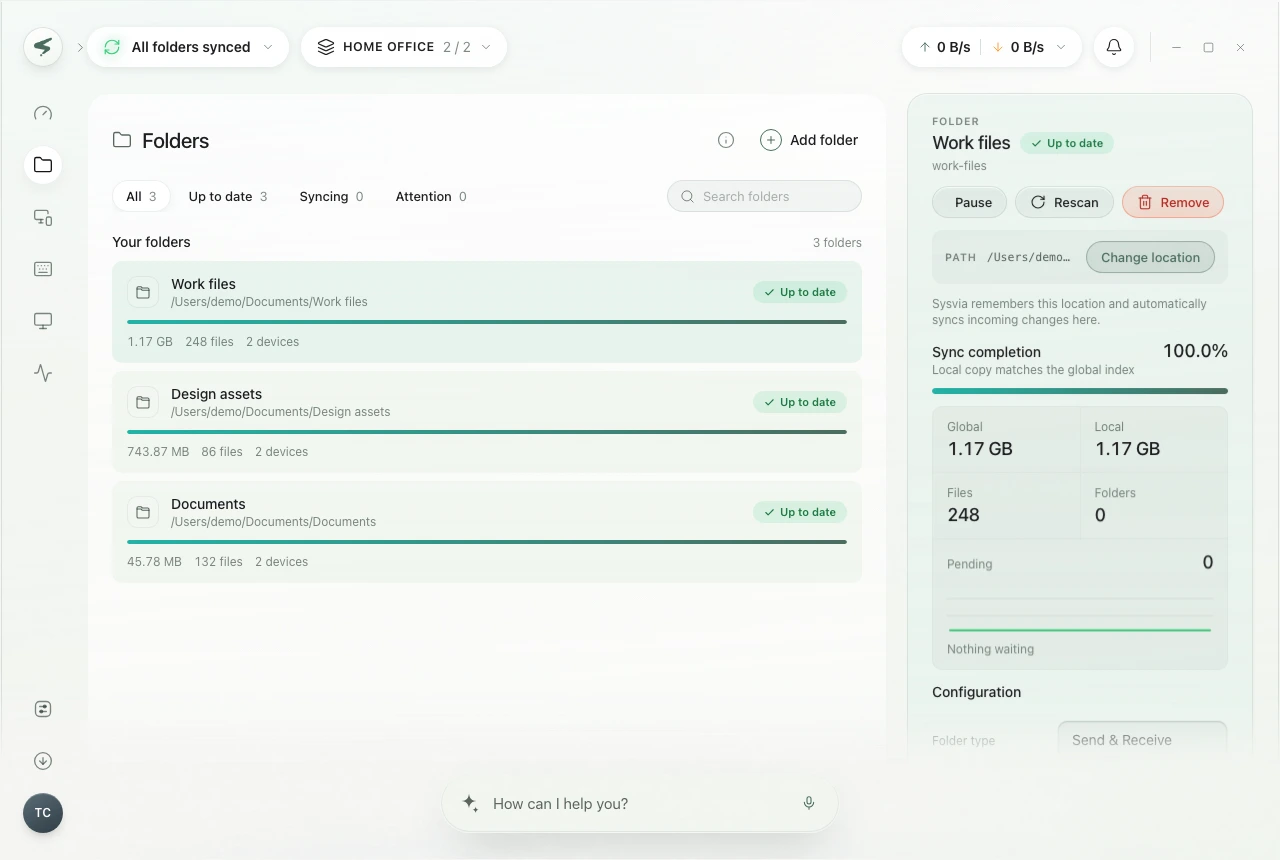
Sysvia folder sync showing shared folders and their progress

Edit here. Pick up there.

Keep chosen folders up to date across your computers. Choose two-way sync, or send in just one direction.

Explore folder sync
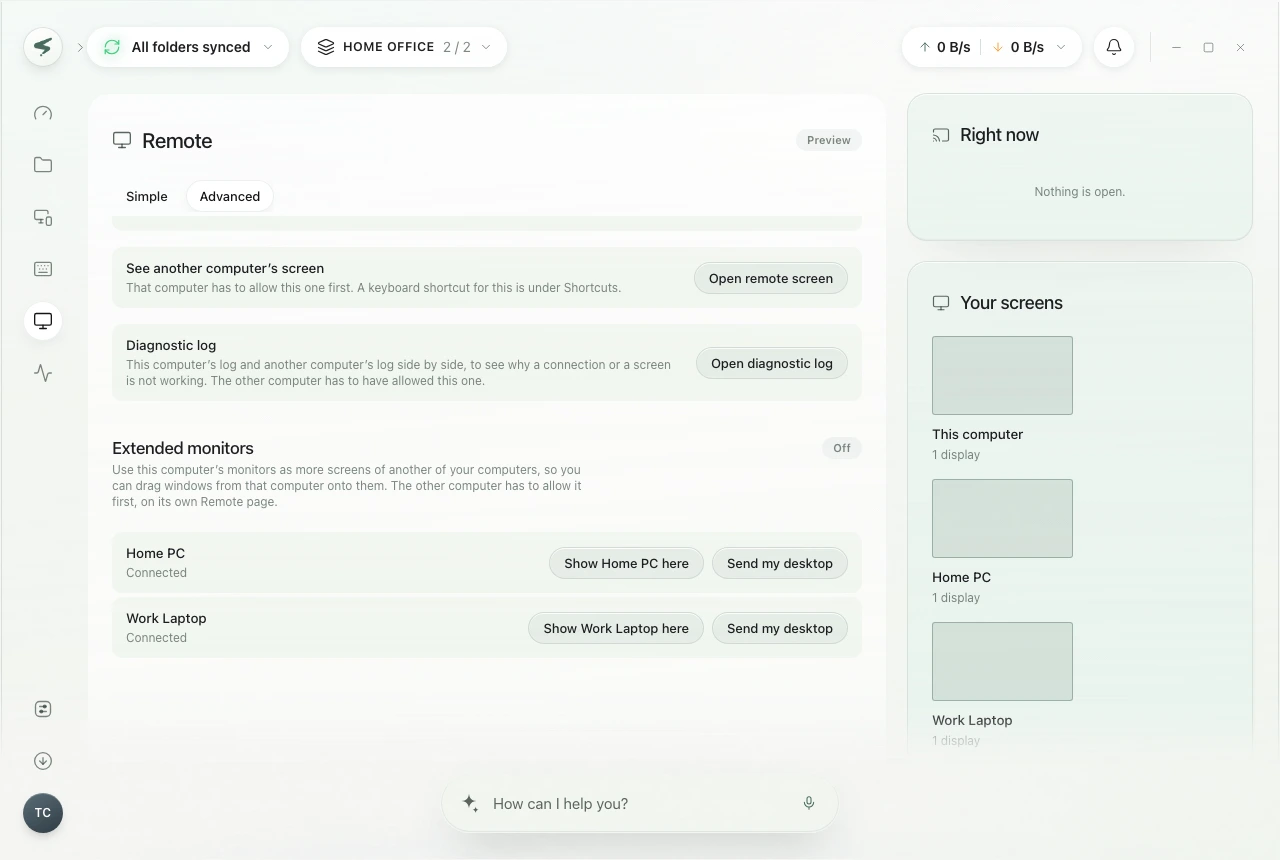
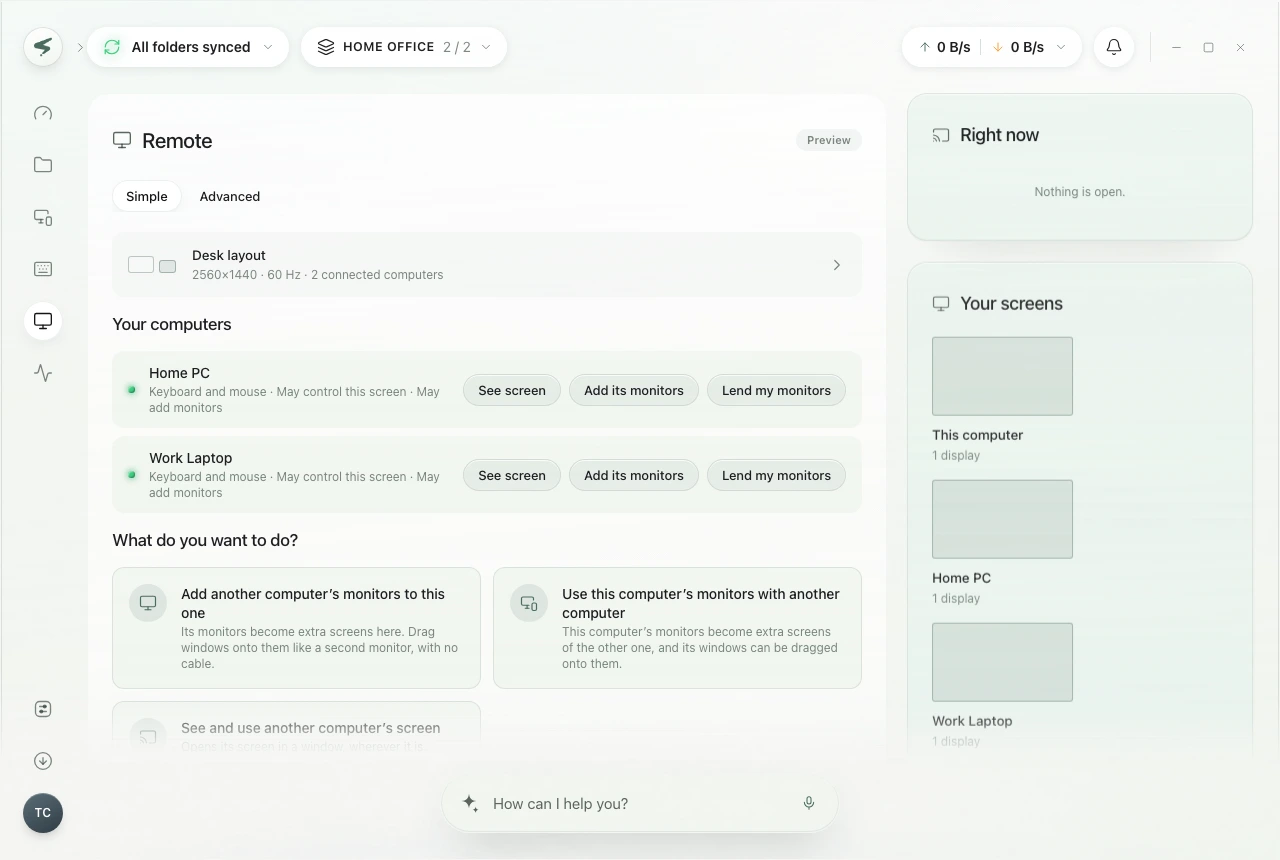
Sysvia remote screen controls and connected computer selection

Your other computer. Right here.

Open another computer's screen on yours. View its desktop and take control when that computer allows it.

Explore remote screens
Sysvia extended monitor settings for using another computer's displays

Make more of your monitors.

Use another computer's displays as extra desktop space, then switch them back to their own computer.

Explore extended monitors

You decide what gets shared. Screen access is off by default, with separate viewing and control permissions. Extended monitors on Windows require an approved display driver; performance depends on your hardware and network.

How Sysvia protects your workspace
Your workspace. One purchase.

All the core features.
One-time pricing.

No required subscription. Personal and Pro include input sharing, clipboard, folder sync and screen features. Choose the computer limit and relay allowance that fit your setup.

Find your Sysvia plan

Personal

$19.99

One-time, per person5 computers · 10 GB monthly relay

Pro

$39.99

One-time, per person15 computers · 20 GB monthly relay

Prices in USD. Monthly relay allowances apply to relayed traffic, not direct connections. 30-day money-back guarantee.

Choose what fits your desk

A few things
worth knowing.

Your setup is personal. If you want help deciding whether Sysvia fits, tell us what you work with.

Talk through your setup
Why pay when there are free alternatives?

If input sharing is all you need, a free tool can be enough. Sysvia is for people who also want folder sync, remote screens and extended monitors in the same app. You're paying for a more complete workspace, with a 30-day money-back guarantee to try it on your computers.

Does Sysvia support Linux?

Yes. Sysvia supports Windows, macOS and Linux. For sharing input between Macs and iPads, Apple's Universal Control may suit your setup.

Do I need a special keyboard or mouse?

No dedicated KVM switch or specific peripheral brand is required. Install Sysvia on your computers and use the keyboard and mouse you already have. Your operating system may ask you to allow input or screen access. See the setup guide.

Can my computers be on different networks?

Sysvia tries a direct connection first. When a direct connection isn't available, you can enable an encrypted relay in Settings. Your plan's monthly relay allowance applies to relayed traffic. Both computers must be awake, running Sysvia and reachable. Learn about connections and allowances.

Sources & comparison notes Reviewed November 19, 2026

We compared each product's published features, not measured performance. A dash means a capability wasn't described in the linked documentation; it isn't a claim that a workaround is impossible. Transfers are distinguished from continuous folder sync, and input control from viewing a remote screen. Vendor editions, beta features, compatibility and terms can change.

Spotted a change? Let us know so we can keep this comparison useful.