
Host this desk
Your usual keyboard and mouse stay connected here. Set the screen layout on this computer.
Keep your laptop beside your desktop and move between them with the keyboard and mouse you already use. Bring Windows, Mac and compatible Linux computers into the same workflow.
Windows, macOS & Linux. No extra hardware.
A licence is required to connect computers.
Place the laptop on the right. Cross the desktop’s right edge.
Preview: the desktop has the keyboard and mouse.
This guide uses the desktop as the host: it is where your keyboard and mouse are connected. The laptop joins that desk.
The computer with the keyboard and mouse hosts. The other computer joins.
Your usual keyboard and mouse stay connected here. Set the screen layout on this computer.
The laptop keeps its own apps and screen. Your pointer crosses onto it from the desktop.
Open the download page on each computer and choose the installer for its operating system and processor. Install Sysvia, then sign in with the same licensed account on both. Leave the app running.
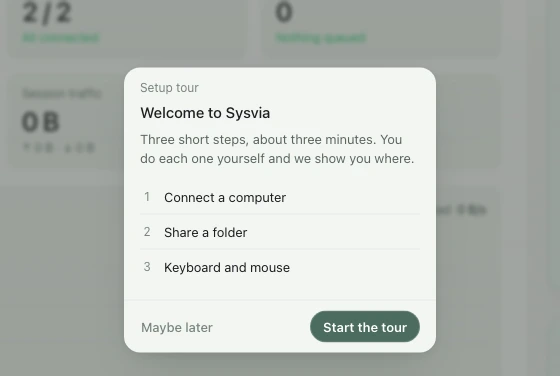
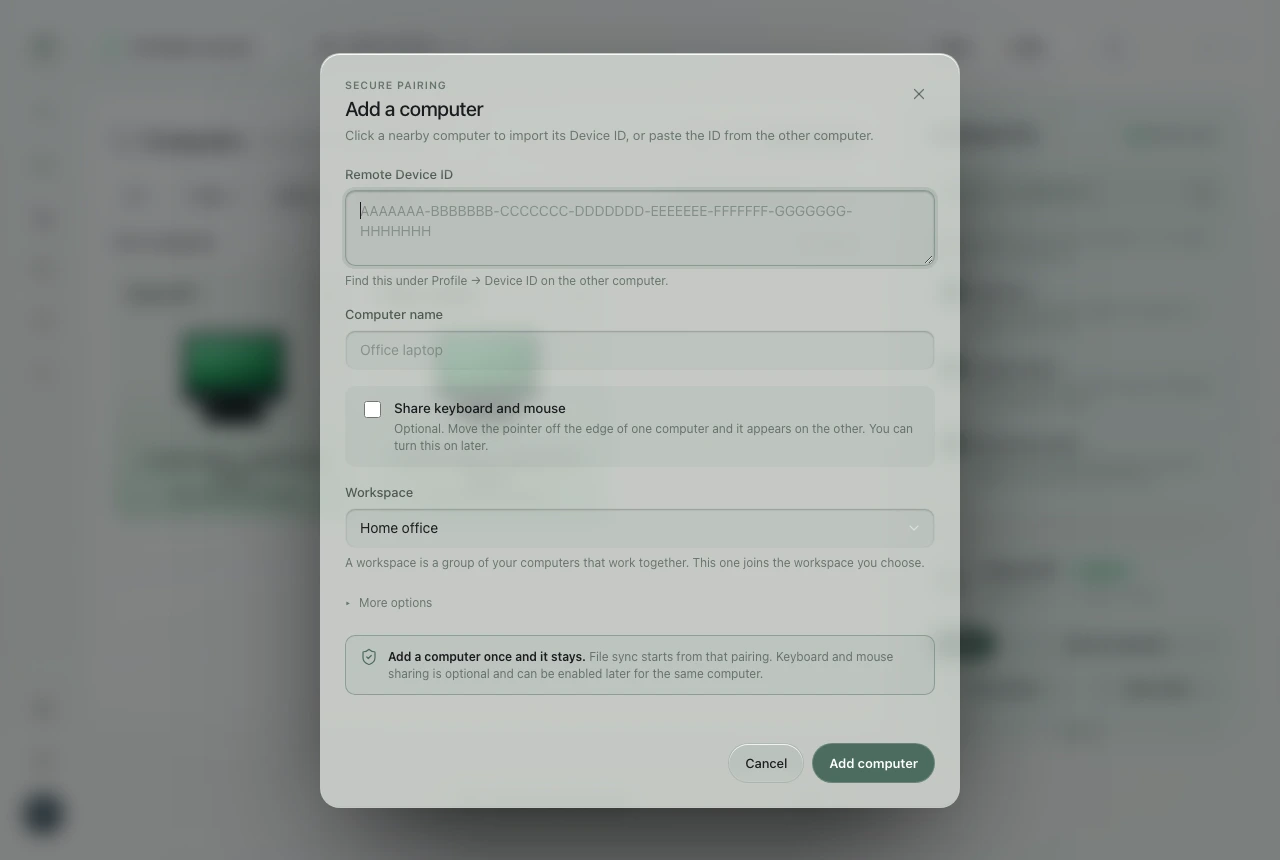
On the desktop, open Computers, then Add computer. Choose the laptop from the nearby list, or paste its Device ID from Profile → Device ID on the laptop. Give it a name, enable Share keyboard and mouse, and select Add computer. Accept the connection on the laptop if prompted.
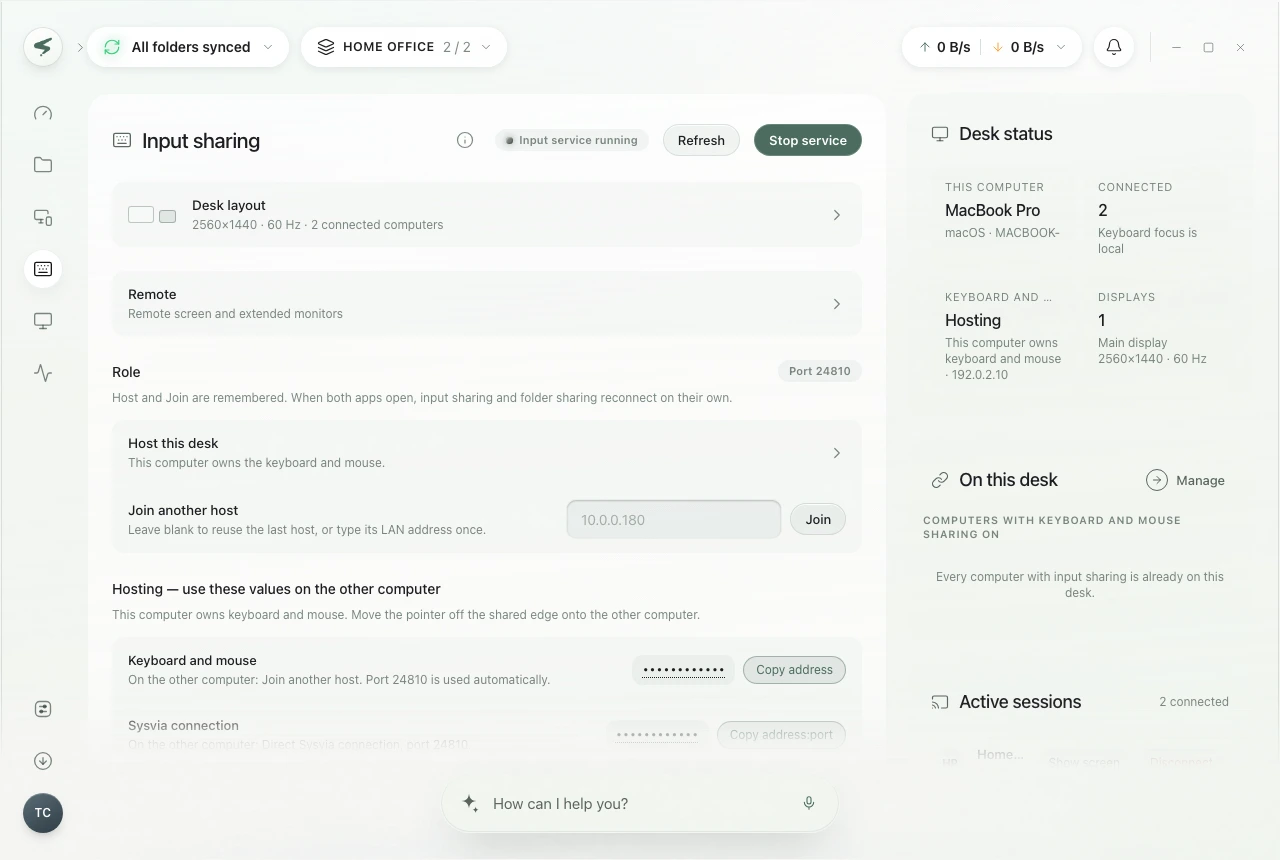
On the desktop, open Input sharing and select Host this desk. On the laptop, open Input sharing and select Join. If discovery does not find the host, enter the address shown in the desktop’s connection details. Wait for the laptop to appear in the connected list.
Mac or Linux? See the platform notes for Accessibility access on a Mac and desktop sessions on Linux before testing input sharing.
On the desktop, open Input sharing → Desk layout. Your own monitors keep their operating-system arrangement. Drag the laptop next to the screen edge it sits beside. If the laptop is on your left, place it on the left. Select Apply layout to save.
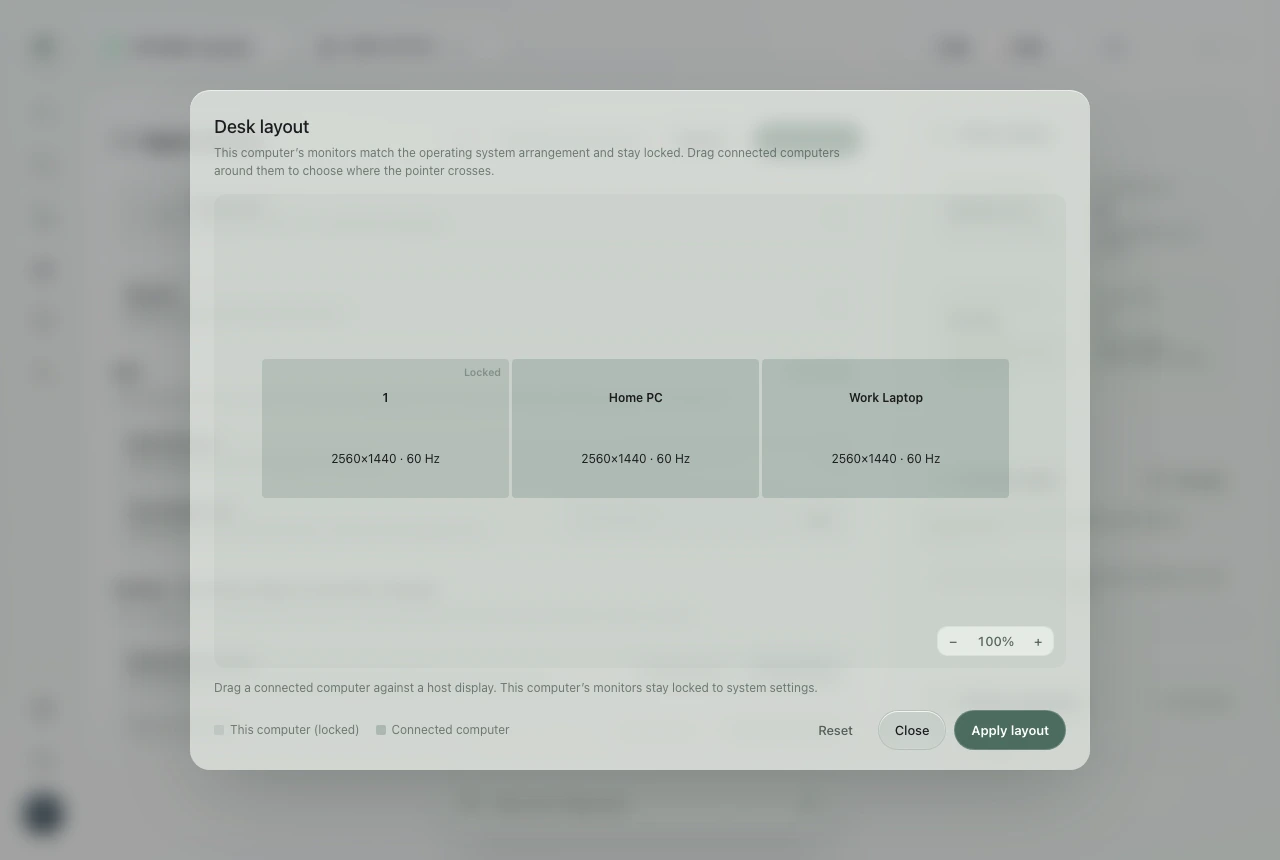
Close the layout window. Move your pointer across the screen edge you chose and type a few words on the laptop. Your desktop’s keyboard and mouse now follow you onto the laptop.
Press Ctrl + Alt + Esc on Windows or Linux, or Control + Option + Esc on a Mac, on the computer whose input you want to take back.
The connection stays the same. What changes is where the laptop sits and what it is for.
Keep the laptop open at the side of your desktop monitors for chat, email or a second project. Place it on that side in Desk layout, so reaching it is a flick of the mouse.
The two computers do not need to match. Install Sysvia on each, and allow Accessibility access on the Mac when it asks.
Combine a compatible Linux setup with a Windows PC or Mac. Check your distribution and desktop session first; native Wayland input support is still in development.
Want to see the laptop’s screen on the desktop too? Sysvia can show another computer’s screen. See what else Sysvia shares.
Use the same host-and-join steps, with the right installer and permissions for each computer.
Check your system type in Settings → System → About. Choose a matching public build, and allow Sysvia through the firewall on your trusted local network.
Windows installersEnable the components named in Sysvia’s prompt under System Settings → Privacy & Security → Accessibility. Fully quit and reopen Sysvia after changing permission.
Mac setup notesChoose a compatible AppImage or Debian/Ubuntu .deb. Input sharing depends on the desktop session; native Wayland input support is still in development.
The right choice depends on the computers you have and what you want to share.
Platform details from Apple Support: Universal Control and Microsoft Learn: Mouse Without Borders, checked on 23 November 2026. Apple, Mac, Microsoft, Windows and PowerToys are trademarks of their owners. Sysvia is independent and is not affiliated with or endorsed by Apple or Microsoft.
Common questions for a laptop and desktop setup.
Talk to our teamHost on the computer whose keyboard and mouse you want to use. This guide uses the desktop as the host, but a laptop can host instead if its controls are the ones you prefer. Join from the other computer and arrange the screens on the host.
Yes. Press Ctrl + Alt + Esc on Windows or Linux, or Control + Option + Esc on a Mac, to return the keyboard and mouse to the computer you are on.
No. You can combine Windows, macOS and compatible Linux computers. Install Sysvia on each one, sign in with the same licensed account and follow the host-and-join steps.
Sysvia needs to be installed, and on a Mac it needs Accessibility access, so check with your IT team first if your employer manages the laptop. Connecting computers requires an account with an active licence.
Yes. Add more computers to the same desk and arrange them in Desk layout. A Personal licence covers up to 5 computers; Pro covers up to 15. See the plans.
For your first setup, yes. After that, Sysvia can connect computers on different networks, directly when it can and through an optional encrypted relay when it cannot.
The installer is free to download. Connecting computers requires an account with an active licence. Personal starts at $19.99 once for 5 computers, with a 30-day money-back guarantee.
Bring your laptop and desktop together. Choose the licence that fits your setup.