
Install once on each computer.
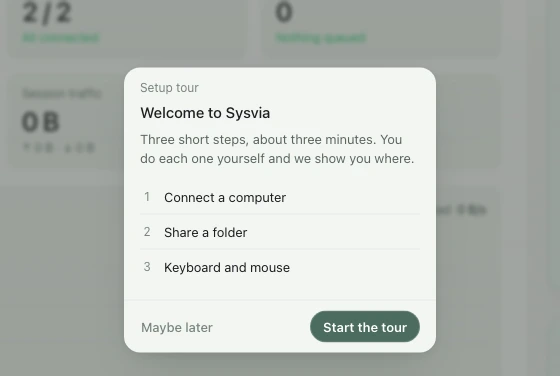
Open the download page on each computer and choose the installer for its operating system and processor. Install Sysvia, then sign in with the same licensed account on both. Leave the app running.
A sentence, a link, a screenshot. Copy it on one computer and paste it on another. Sysvia connects your clipboard across Windows, Mac and compatible Linux desktops.
Text, links and images. Your usual shortcuts.
A licence is required to connect your computers.
Let’s pick this up on the other computer.
Start with two computers. Once a copy crosses over, add the rest.
Open the download page on each computer and choose the installer for its operating system and processor. Install Sysvia, then sign in with the same licensed account on both. Leave the app running.
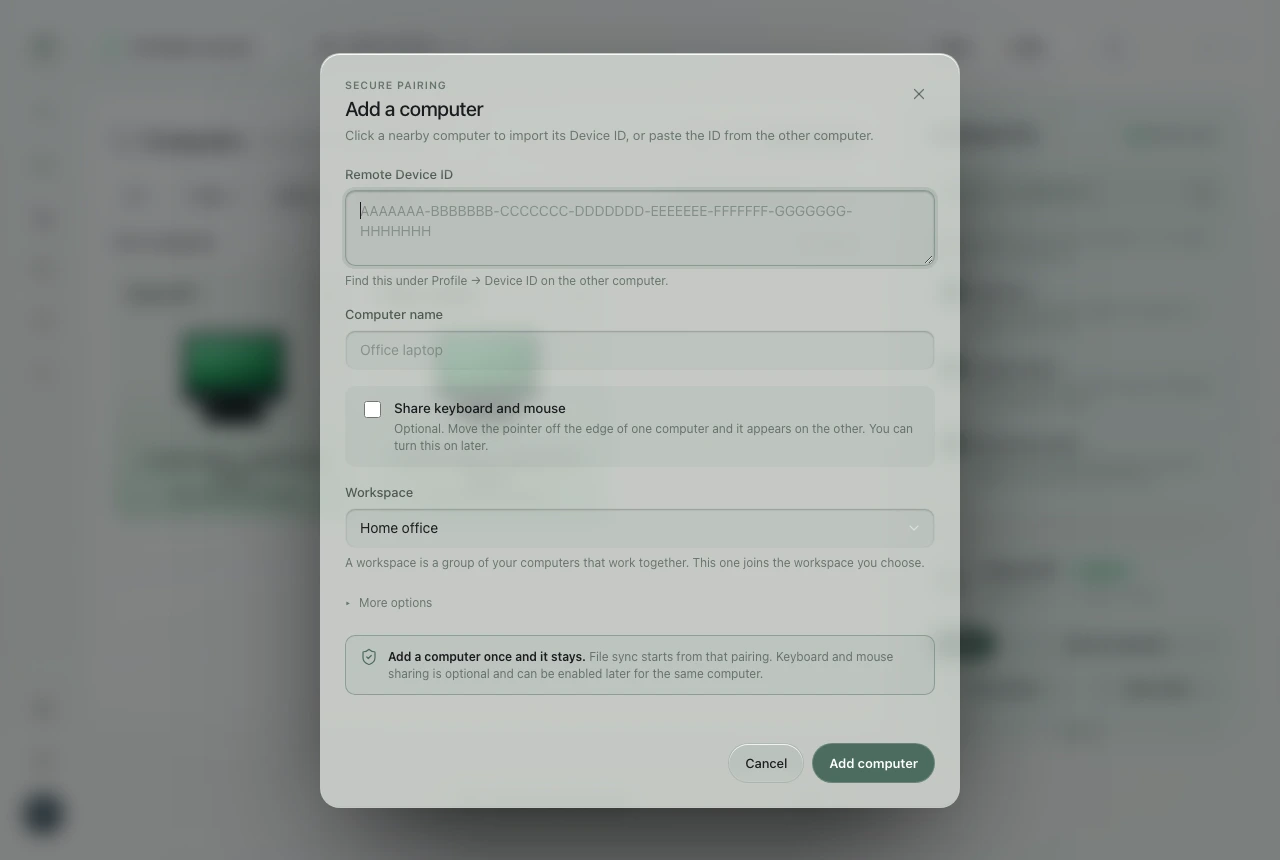
Open Computers, then Add computer. Choose the other computer from the nearby list, or paste its Device ID from Profile → Device ID on that computer. Give it a name, enable Share keyboard and mouse, and select Add computer. Accept the connection on the other computer if prompted.
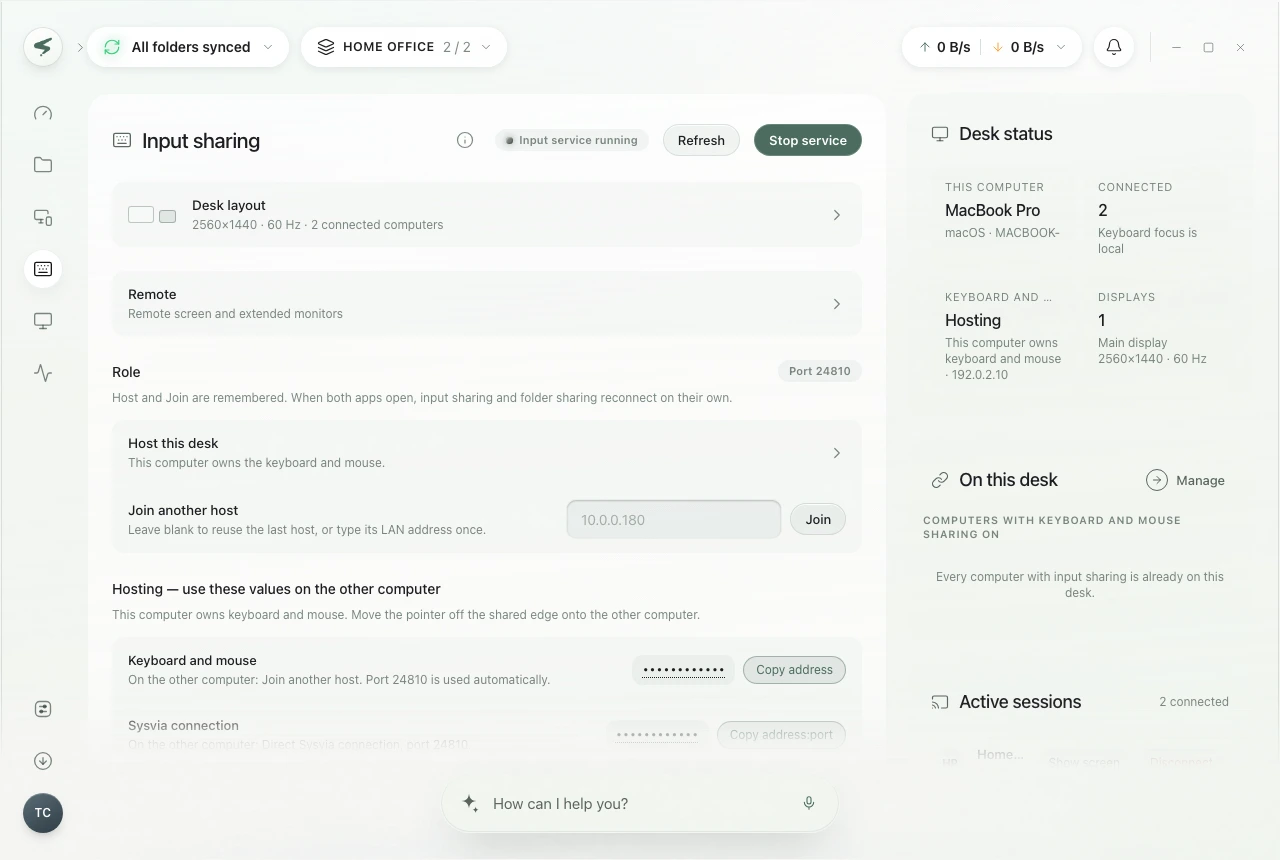
On one computer, open Input sharing and select Host this desk. On the other computer, open Input sharing and select Join. If discovery does not find the host, enter the address shown in the host’s connection details. Wait for the other computer to appear in the connected list. It does not matter which one hosts. The same steps are in the keyboard and mouse guide, with notes for Mac and Linux.
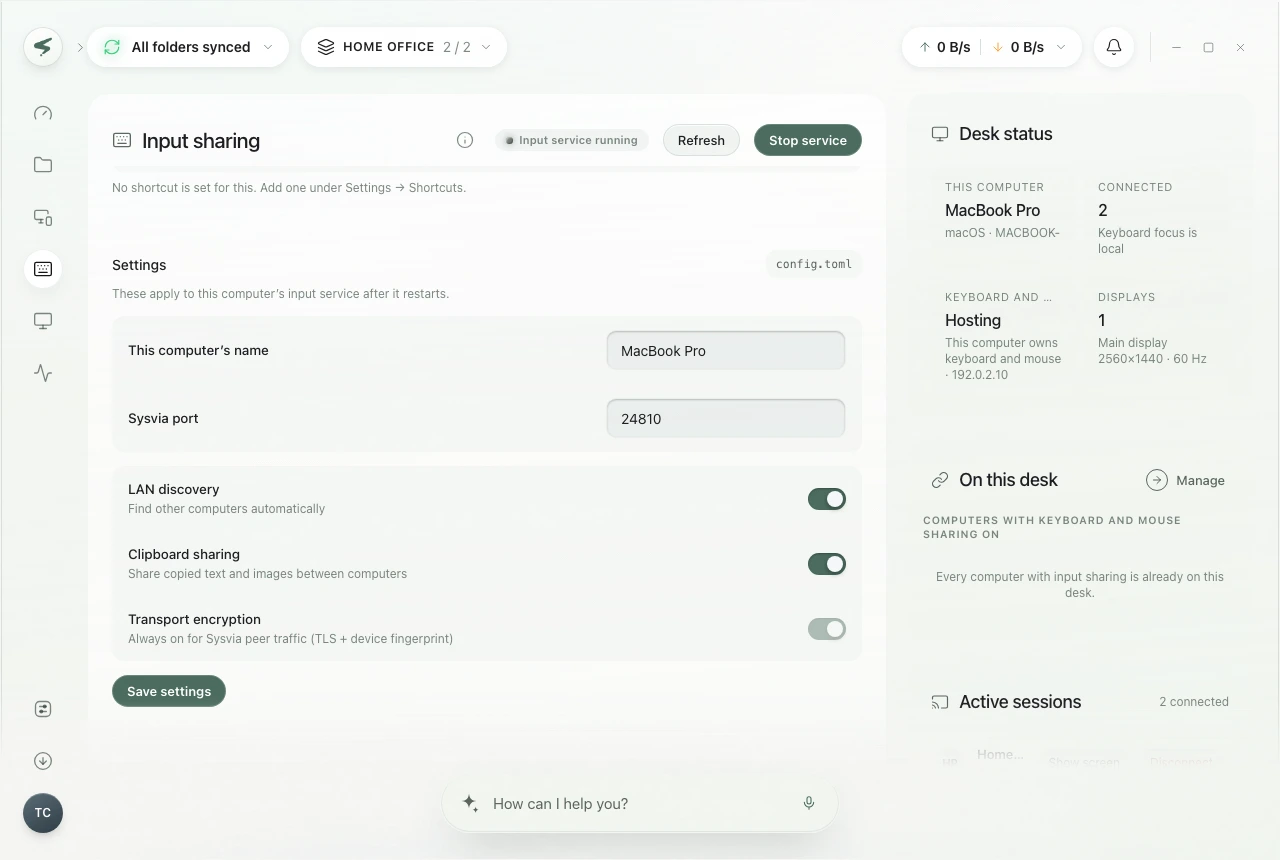
On each computer, open Input sharing → Settings. Find Clipboard sharing, described in the app as “Share copied text and images between computers,” and make sure it is on. It is on by default. Select Save settings if you changed it.
Copy a sentence, a link or an image as you normally would. On the other computer, paste with its usual shortcut: Ctrl + V on Windows or Linux, or Cmd + V on a Mac. Sysvia sends the copy to every connected computer, so you can paste it on any of them. By default it shares copies up to 10 MB.
Open Input sharing → Settings on each computer. Clipboard sharing is on by default; turn it off whenever you want and select Save settings.
Using Linux? Clipboard support depends on your desktop session and installed clipboard tools. If you use Wayland, check your distribution and desktop with us before buying.
The right choice depends on the computers you have.
Details from Apple Support: Universal Clipboard (dated 18 February 2026) and Microsoft Support: Using the clipboard, checked on 23 November 2026. Apple, Mac, iPhone, iPad, Microsoft, Windows and PowerToys are trademarks of their owners. Sysvia is independent and is not affiliated with or endorsed by Apple or Microsoft.
Common questions about sharing a clipboard.
Talk to our teamCheck that Sysvia is open on both computers and that both show as connected. Open Input sharing → Settings on each one and make sure Clipboard sharing is on, then select Save settings. Copies above the default 10 MB limit, or content other than text, links and images, are not shared.
Not through the clipboard. Sysvia shares copied text, links and images, and does not share copied files. To move files, keep a folder in sync between the computers instead. The Getting started guide covers sharing your first folder.
Copies go to the computers you have connected to your Sysvia desk, and no one else. Traffic between your computers is always encrypted with TLS, and each computer is checked against its device fingerprint. Someone on the same network does not automatically gain access to your clipboard.
Yes, you can connect Windows, macOS and compatible Linux computers. Linux clipboard support depends on your desktop session and installed clipboard tools, and Wayland setups can have limitations. Send us your distribution and desktop details before buying if you are unsure.
For your first setup, yes. After that, Sysvia can connect computers on different networks, directly when it can and through an optional encrypted relay when it cannot. The relay carries traffic it cannot read or alter.
By default Sysvia shares copied text and images up to 10 MB each. A larger copy stays on the computer where you made it.
The installer is free to download. Connecting computers requires an account with an active licence. Personal starts at $19.99 once for 5 computers, with a 30-day money-back guarantee.
Bring your clipboard, keyboard and mouse together. Choose the licence that fits your setup.